1. Welcome to the CognitiveBotics Therapist Platform
The Therapist Platform is where you onboard children, build and adjust their learning plans, run sessions, and track progress over time. It works alongside the CognitiveBotics Parent App — plans you build here appear in the child’s Learn tab, and progress recorded there flows back into your reports.
The examples in this guide use sample children (such as John Doe) and a sample therapist account, but the steps are identical for your own caseload.
What you can do on the platform • See your caseload at a glance and spot children who need attention • Invite new children and build a personalized learning plan for each • Fine-tune mastery duration and prompting level per objective • Track each child’s progress: active objectives, mastered skills, and detailed activity logs • Review daily journal entries submitted by parents • Update a child’s and parent’s details at any time |
2. Getting Around the Platform
The left-hand navigation stays visible on every page:
- Dashboard – a snapshot of your whole caseload
- Children – the full list of children assigned to you, and where you invite new ones
- Content Library – every skill, objective, and parent training video on the platform, browsable independent of any child’s plan
- Therapists (Applicable for Admin) – the full list of therapists onboarded in cognitiveBotics platform from your organization, and where you invite new ones
Your account name and email are shown at the bottom of the sidebar where you can manage your account and can connect to the support team in case you face any platform related issue. A Switch to Classic experience link is also available there if you ever need the previous version of the platform.
3. Dashboard
The Dashboard is the first thing you see after logging in. It gives you a quick read on your caseload before you dive into individual children.
3.1 Summary cards
Four cards summarize your caseload for the current period:
- Recently active – children who have played recently or have been added in last 30 days
- Need attention – children whose progress needs therapist’s attention. When the child faces any difficulty in mastering any assigned learning objective or his/her learning plan is going to end
- On track – children progressing well against their plan
- Journal entries in the past day – how many parent filled the daily journal on the previous day
3.2 Children list
Below the cards, a filtered Children list (defaulting to Needs attention) shows each child’s name, status tag (for example, Limited progress or Plan ending soon), and how long ago they last played. Click on View reports to see the child’s play data collected during his/her interaction with the learning objectives. Click on Manage plan to see and update the learning plan.
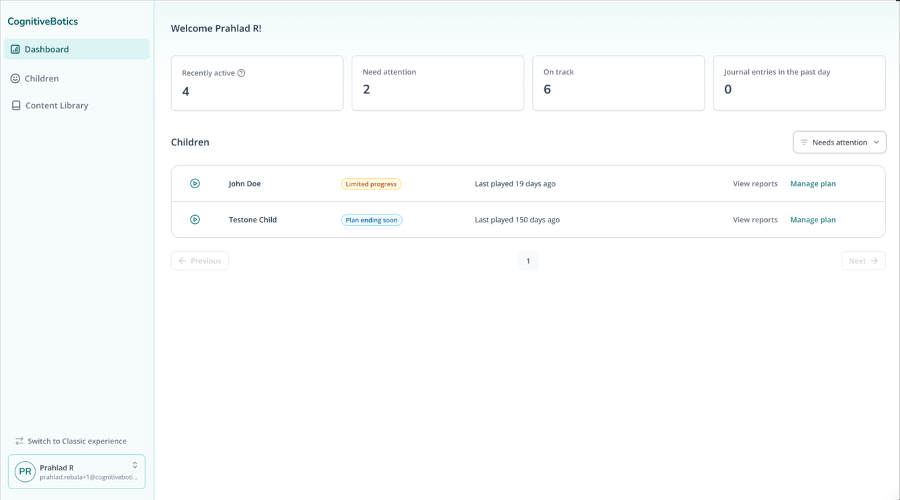
Figure 1 — Dashboard with caseload summary cards and a needs-attention list.
4. Children
The Children page is your full caseload, organized into three tabs.
4.1 Active
Active lists every child currently assigned to you, with columns for Last played, Objectives mastered (as a progress bar), and Plan status (New, On track, Limited progress, and so on). Use the Plan status filter or the search box to narrow the list, and click a column header to sort.
Status definition
- Plan ending: 1 LO is in progress/ready to start AND no upcoming Los. You need to add more LOs to the plan to make sure continued learning
- Plan ended / No plan ?: 0 in progress/ready to start/upcoming LOs in plan. When all the LOs assigned to the child has been mastered. Immediately you need to add relevant LOs to the plan so that the parents is not finding the plan empty
- Limited progress: If 1 or more LOs are marked as limited progress. LO is marked as limited progress if it hasn’t been mastered in 10 play days. Here you need to analyse the child’s activity to see his/her issues while playing the specific LO
- On track: No triggers AND played in the last 5 days
- New: Learning plan is new and the child has not started playing
You can see a 3 dot menu in the right end which has 2 options
- Start session: It will allow you to start the session of that kid from your end, without the child’s login credentials
- Remove Child: This will allow you to remove the child from your assigned children list.
Please note, If you are the only therapist/teacher assigned to any child removing him/her from the list means completely removing the child from CognitiveBotics Platform
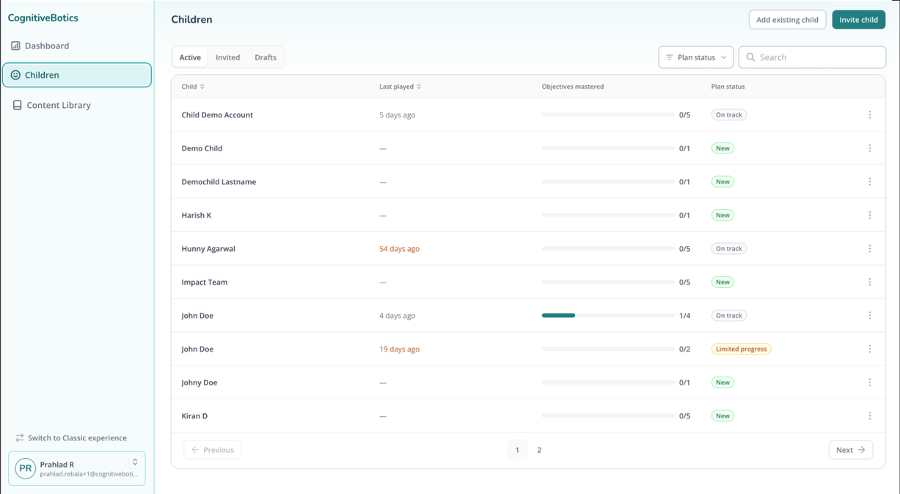
Figure 2 — Active children list with progress and plan status.
4.2 Invited
Invited shows children you’ve sent an invitation to who haven’t created their account by accepting the invite, along with the date they were invited. Use Resend if a parent hasn’t received or acted on the invite. You can also delete and edit the invite from the 3 dots option.
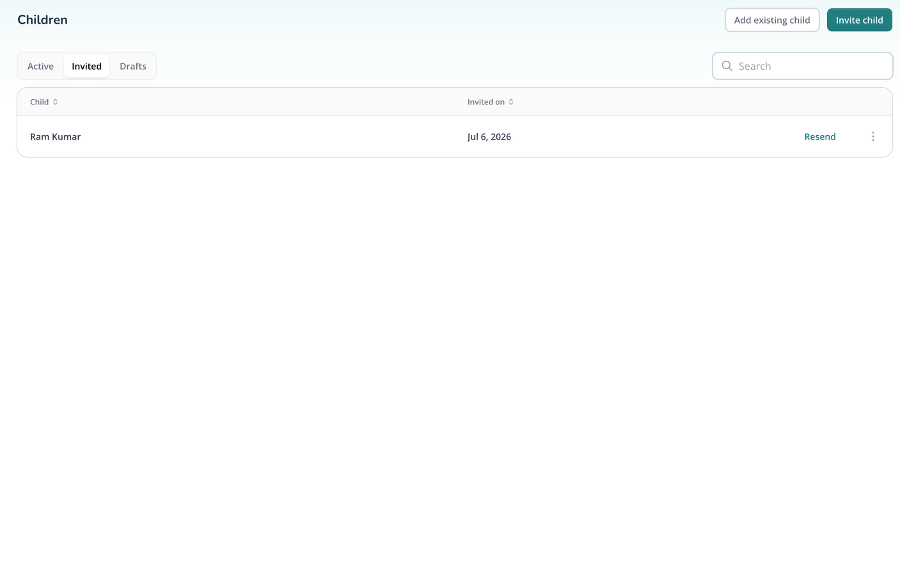
Figure 3 — Invited children awaiting parent sign-up.
4.3 Drafts
Drafts holds any invitations you started but didn’t finish. If you leave the invite flow partway through using Save as draft, it will appear here so you can pick up where you left off.
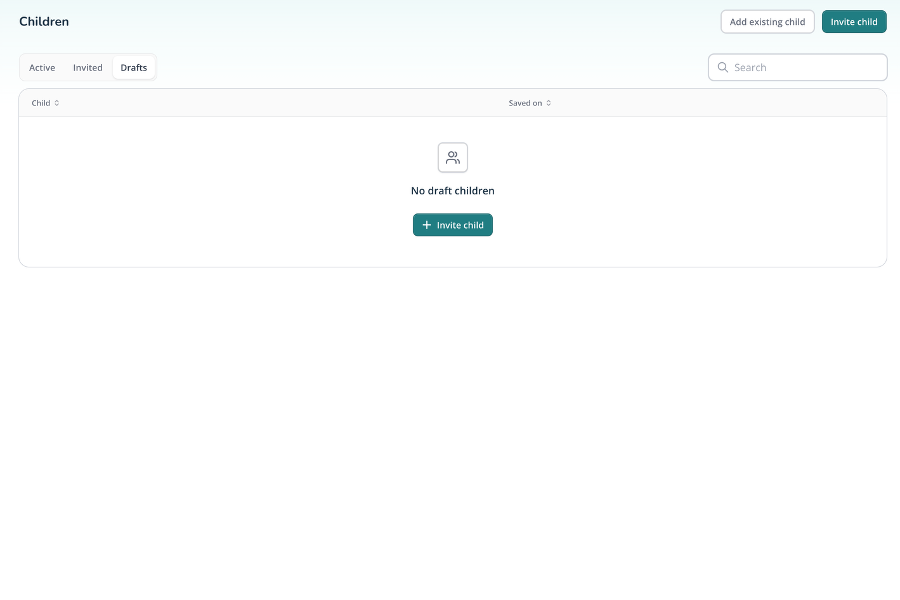
Figure 4 — Drafts tab, empty until a draft invite is saved.
From any tab, use Add existing child to Invite a new child to start onboarding someone new (covered next).
5. Inviting a New Child
Tapping Invite child opens a two-step wizard: Child’s Details, then Learning Plan.
5.1 Step 1 — Child’s details
Fill in the child’s first and last name, date of birth, gender, and the language to use for their objectives. You can optionally upload the child’s assessment documentation as a PDF.
Below that, enter the parent’s details — first and last name, phone number, and email — so they can be invited to the Parent App. The parent will receive the invite link in the registered email and phone number after you complete the invitation process.
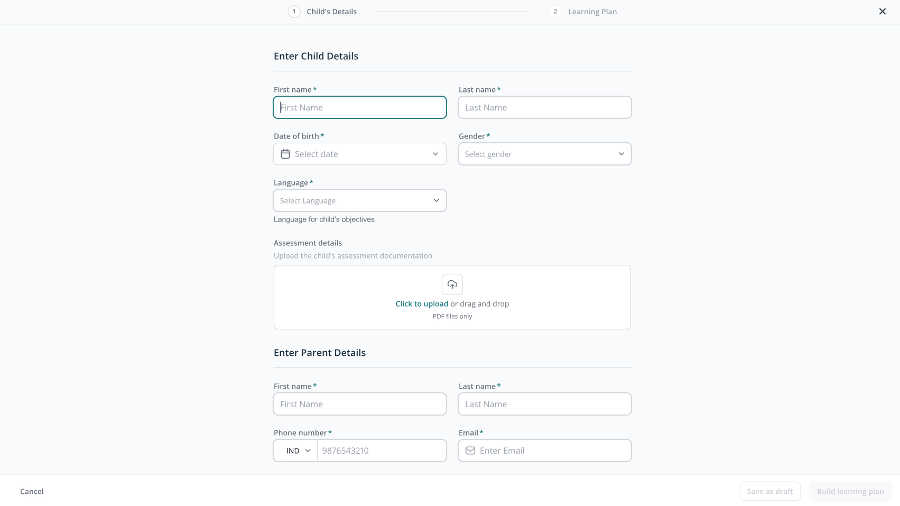
Figure 5 — Step 1: entering child and parent details.
Save as draft You can leave this flow at any point with Save as draft. It will reappear under Children > Drafts so you can finish it later. |
Once the required fields are filled in, tap Build learning plan to move to Step 2.
5.2 Step 2 — Building the learning plan
This is where you can create individualised learning plan for the child based on his/her learning requirement. The left sidebar lists every skill category (Attending, Imitation, Receptive, Expressive, Visual Perception, Social, Play, Self-help, Reading & Writing, and Arithmetic) with its number of available objectives. The main panel lists objectives grouped by skill, each with its target list and an Add to plan button. Use Search to jump to a specific objective.
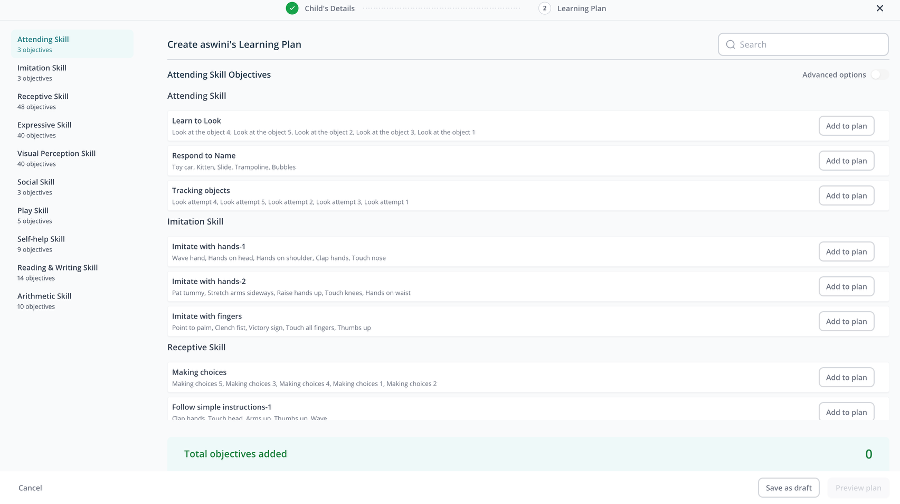
Figure 6 — Browsing and adding objectives to a new learning plan.
5.3 Advanced options
Turn on Advanced options (top right) to customize the Mastery duration (how many consecutive days of success are required) and Start from level (for example, Most prompted, for children who need more support at first) for each LO
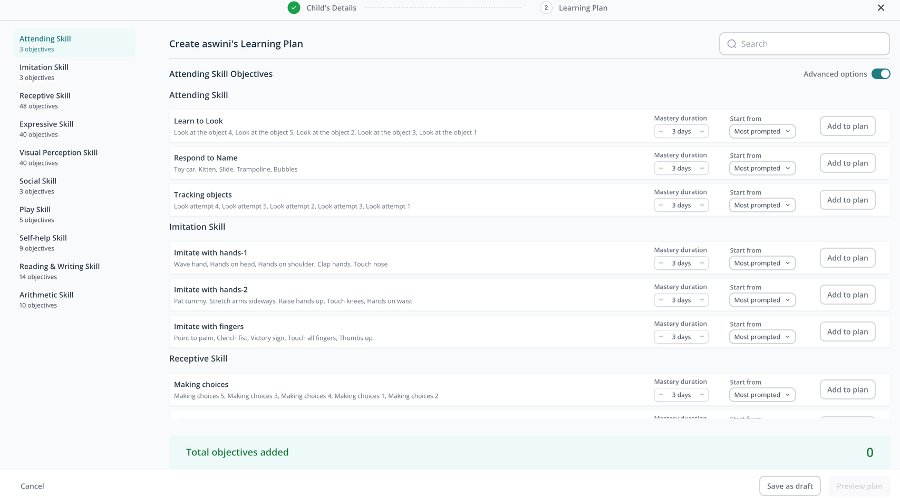
Figure 7 — Advanced options expose mastery duration and starting level per objective.
5.4 Previewing and creating the plan
You can have a review, rearrange and make other changes in the plan before it goes live. Here you can set:
- Objectives per day – how many objectives are presented to the child in a day
- Adaptive updates – when on, the plan automatically advances objectives as the child progresses
Each added objective is listed with its status, mastery duration, and starting level, and can be removed with the × if you change your mind. Tap Create plan to finish, or Save as draft to come back later.
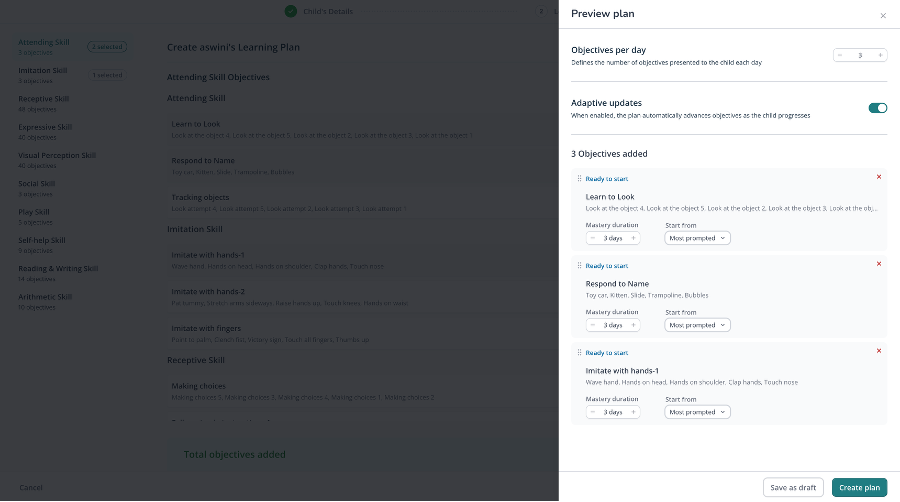
Figure 8 — Preview plan panel, with per-day pacing and adaptive updates.
6. Managing a Child’s Learning Plan
Opening any child from the Children list or Dashboard takes you to their profile, with four tabs: Learning Plan, Reports, Journals, and General Details.
6.1 Learning Plan tab
This tab shows every objective currently assigned, grouped by status:
- In Progress – objectives the child is actively working on, each showing its target list and whether it’s Ready to Start or In Progress
- Upcoming – objectives queued up but not yet reached
- Mastered – objectives the child has completed, with the date they were mastered
Use the filters (Plan Assigned By You, All skills, All status) to narrow the view. A status banner near the top (for example, Plan on track) gives a quick read on overall progress.
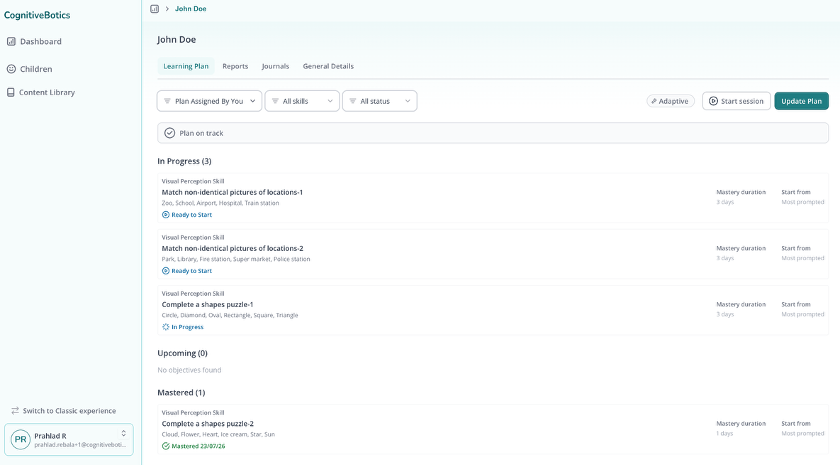
Figure 9 — A child’s Learning Plan tab, grouped by In Progress, Upcoming, and Mastered.
Useful actions on this tab Start session — begin a live session with the child directly from the plan Update Plan — add, remove, or adjust objectives after the plan has been created Adaptive — shows whether adaptive updates are turned on for this plan |
6.2 Updating a learning plan
Tap Update Plan from the Learning Plan tab to open the same skill-by-skill objective browser used when the plan was first created, now pre-loaded with the child’s existing plan. The left sidebar shows how many objectives from each skill are already added, and you can search, filter by Status, and turn on Advanced options to set Mastery duration and Start from for anything new you add.
The right-hand panel lists every objective currently in the plan, grouped by status (In progress, Ready to start, Upcoming, Mastered objectives), and lets you remove one with the × next to it. Objectives per day and Adaptive updates can be adjusted here as well.
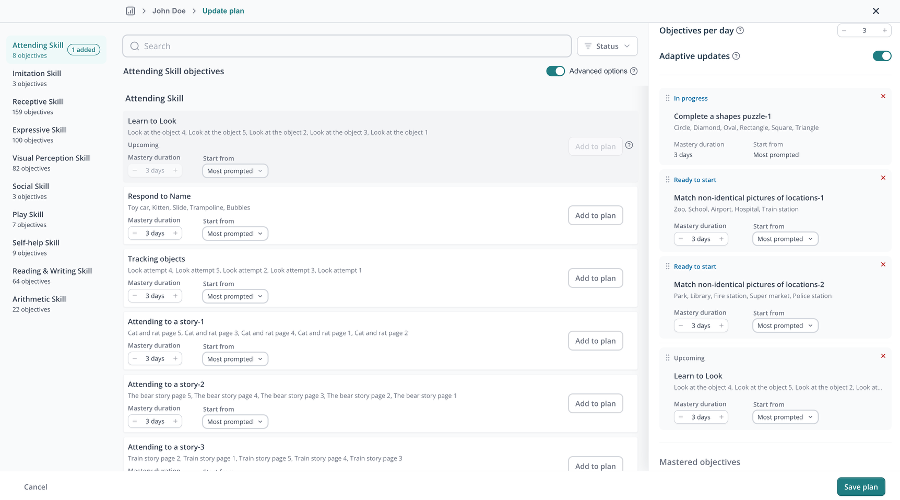
Figure 9a — Updating an existing learning plan: adding, removing, and re-pacing objectives.
Tap Save plan once you’re happy with the changes.
Please note:
- You can update the plan designed by you for the child, but nit he plan created by other therapists assigned to that child. Though you will be able to see their plan
- LO assigned by other therapists to the child will be not be available for you to add in the plan
- LOs already mastered can be added again
- While updating the learning plan you can’ change the mastery duration or difficulty level of any LO which are in progress
7. Reports
The following section takes you through our extensive report section where you can find in-depth insights into your child’s progress, including skill development, achieved goals, and areas for improvement. Regularly reviewing these reports allows you to work closely with your child’s therapist to customize their learning experience.
7.1 Overview charts
At the top, Cumulative tasks mastered charts total tasks mastery over time, and Days played marks which days the child practiced on a monthly calendar, which can be changed from the arow available in the calendar view.
7.2 Active learning plan table
Below the charts, a task-by-task table (grouped by skill) shows Independent and Prompted response counts, total Attempts, First try rate, Days played, and Status for every task in the active plan. Further down, an Accuracy rate chart tracks performance trends over a selectable date range.
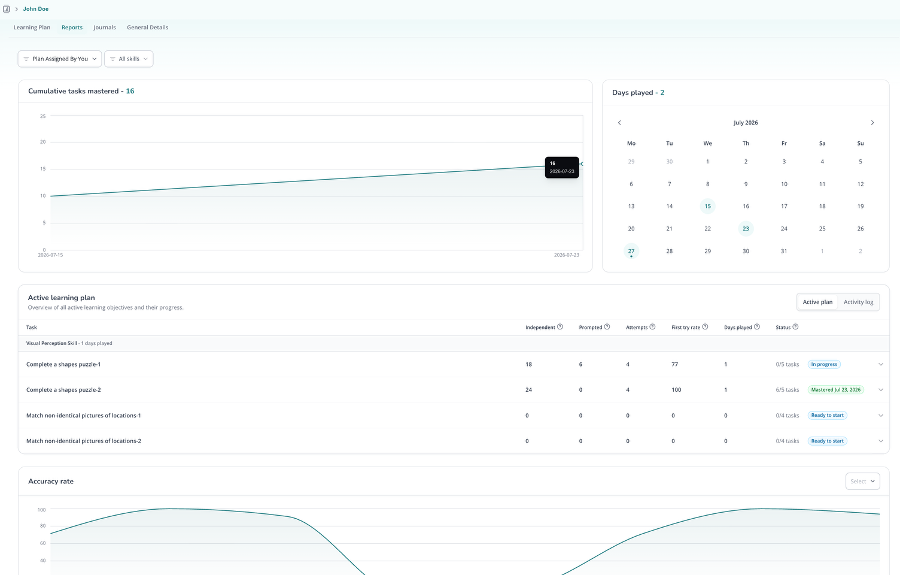
Figure 10 — Reports tab: mastery trend, calendar, active plan table, and accuracy chart.
7.3 Activity log
In this section you will be able to see each task wise interaction, which can help you analyse the child’s progress easily. Switch from Active plan to Activity log (top right of the table) for a full, filterable record of every attempt — date, skill, objective, target, level, type (Practice or First Try), accuracy rate, whether the response was prompted or independent, and prompt count. Use the Objective, Type, and date-range filters to narrow it down, and page through results at the bottom.
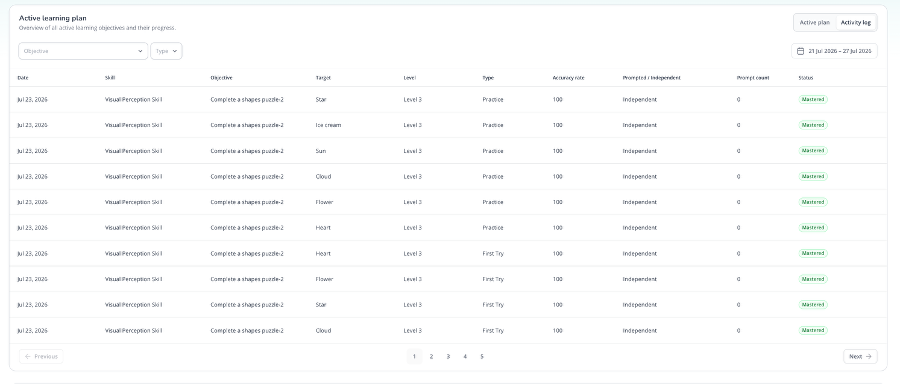
Figure 11 — Activity log with a full attempt-by-attempt history.
For detailed reposting understanding please refer to the reporting section
8. Journals
The Journals tab shows the daily check-ins parents log from the Connect tab in the Parent App, laid out as a week-by-week grid: Sleep Quality, Eating Pattern, Medication, Tiredness Level, Challenging Behaviors, and Overall Mood, plus an Additional Notes entry for each day. Use the date range picker to move between weeks.
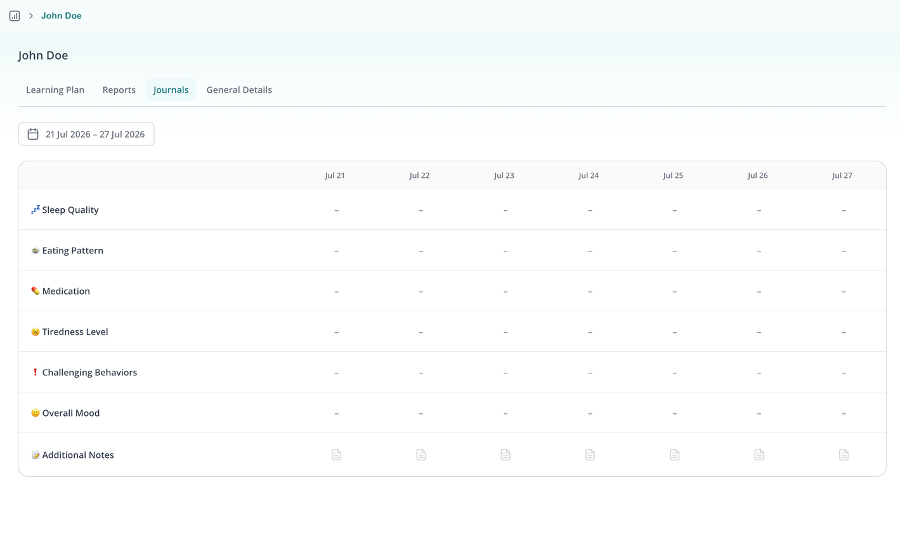
Figure 12 — Weekly journal grid submitted by the parent.
Good to know A dash (–) means the parent hasn’t logged that entry for the day yet, not that anything is wrong. |
9. General Details
General Details holds the child’s and parent’s core information: the child’s name, date of birth, gender, and assessment upload, and the parent’s name, email, and phone number.
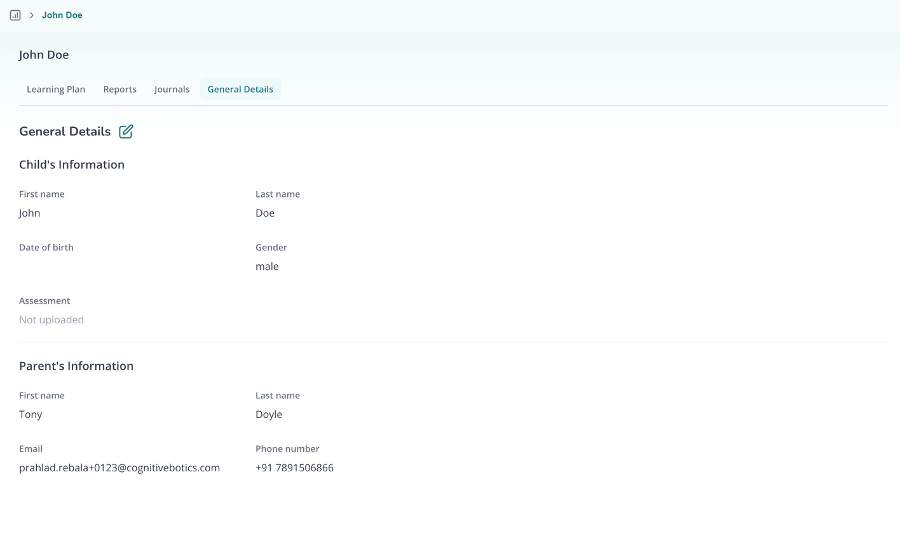
Figure 13 — General Details view for a child.
Tap the edit icon next to General Details to update any of these fields or upload the assessment PDF, then Save changes (or Discard changes to back out without saving). Please note the phone number of the parent can’t be changed
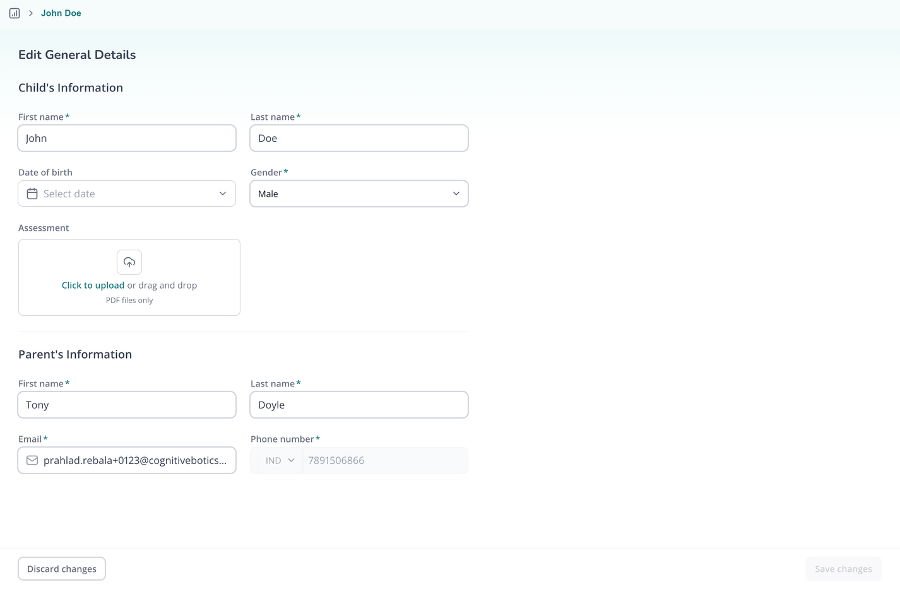
Figure 14 — Editing a child’s and parent’s details.
10. Content Library
Content Library lets you browse every skill, objective, and its tasks on the platform, independent of any specific child’s plan — useful for previewing content before adding it to a plan, or reviewing a parent training video without opening a child’s profile.
The left column lists every skill category with its number of objectives, the same categories you see when building or updating a learning plan. Selecting a category lists its objectives in the middle column, each showing its target list. Selecting an objective shows its details on the right: the skill it belongs to, its full Tasks list, a Preview game button to try the activity itself, and an Additional parent training video.
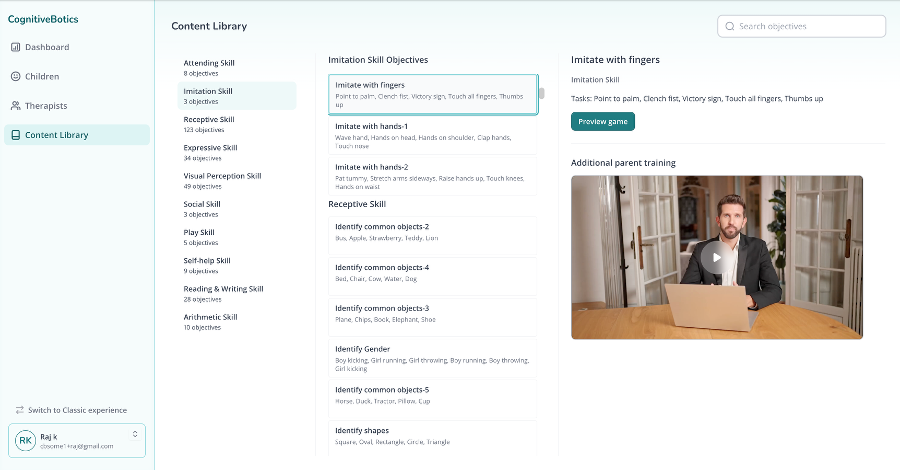
Figure 14a — Content Library: browsing objectives and previewing a parent training video.
Use Search objectives (top right) to jump straight to a specific objective by name.
11. Admin: Managing Therapists
This section is for centre admins only Everything in this section applies to the admin role at a therapy centre, not to individual therapists. If you don’t see a Therapists item in your left-hand navigation, these screens don’t apply to your account. |
Admin accounts have an additional Therapists item in the left-hand navigation, alongside Dashboard and Children. This is where you manage the therapists working at your centre and see which children are assigned to each of them.
Therapists list
The Therapists page has two tabs, similar to the Children page:
- Active – every therapist currently at your centre, with their specialisation and how many children are assigned to them
- Invited – therapists who’ve been sent an invite but haven’t joined yet, shown with a No pending invitations empty state when there’s nothing outstanding
Use Search to find a specific therapist, or click a column header to sort. Selecting a therapist’s name opens their profile.
As an admin you can remove a therapist from the platform from the 3 dot menu
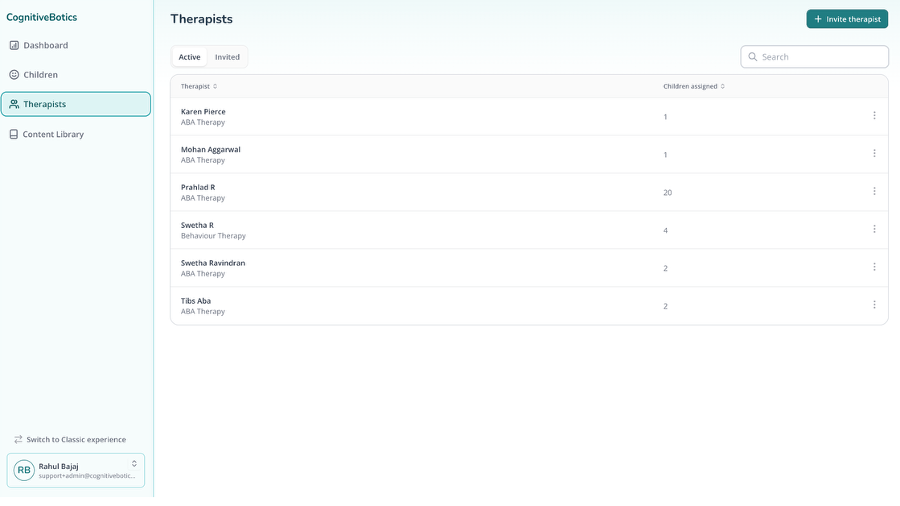
Figure 15 — Active therapists at the centre, with children assigned to each.
12. Inviting a Therapist
Tap Invite therapist to open the details form. Required fields are first and last name, email, and phone number; you can also record date of birth, gender, specialisation, authorising body, registration number, and licence validity date. Tap Send invite when you’re done.
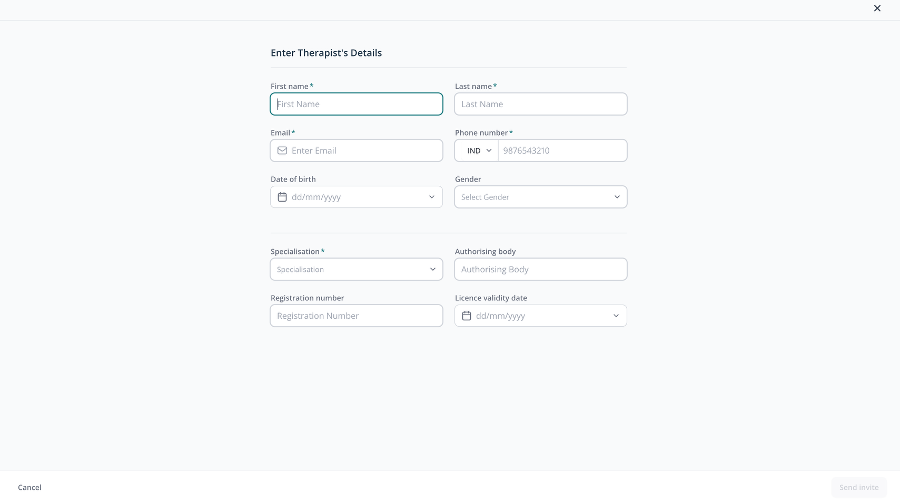
Figure 16 — Entering a new therapist’s details and credentials.
13. A Therapist’s Profile
Opening a therapist from the Active list shows their profile with two tabs: General Details and Children assigned.
13.1 General details
General Details lists everything captured at invite time — name, contact info, date of birth, gender, specialisation, authorising body, registration number, and licence validity date. Tap the edit icon to update any of these fields, then Save changes.
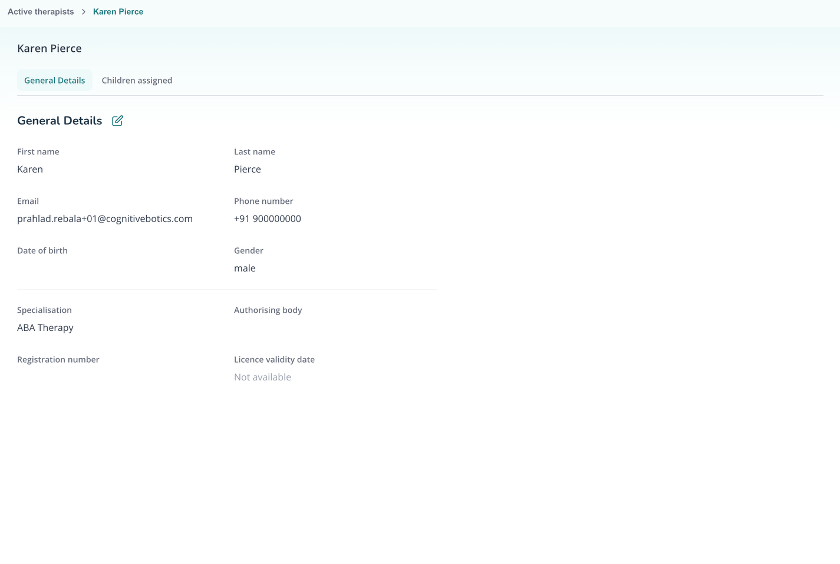
Figure 17 — A therapist’s General Details.
13.2 Children assigned
Children assigned lists every child on that therapist’s caseload, with Last played, Objectives mastered, and Plan status for each — the same information the therapist sees on their own Children page, viewed from the admin side.
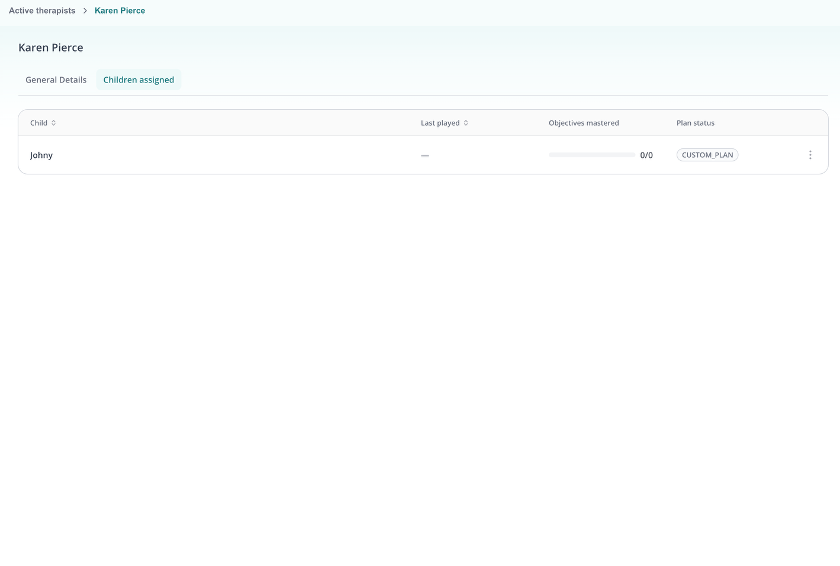
Figure 18 — Children assigned to a specific therapist.
14. Tips for Getting the Most Out of the Platform
- Start each day on the Dashboard — the Need attention card surfaces children who need a plan adjustment before it becomes a bigger gap.
- Use Advanced options when building a plan for a child who needs more support at first; you can always tighten mastery duration later as they progress.
- Turn on Adaptive updates for plans that are progressing steadily, so you spend less time manually advancing objectives.
- Check the Activity log (not just the summary table) when a child’s first try rate looks off — it shows exactly which targets are causing trouble.
- Review Journals before a session — a rough night’s sleep or a skipped medication dose can explain an off day.
- Keep General Details current, especially parent contact info, so invites and notifications reach the right person.
- Preview content in the Content Library before adding an objective to a plan, so you know exactly what the child will see.
15. Need Help?
If you run into an issue on the platform, reach out to your CognitiveBotics account contact for support.
Was this article helpful?
That’s Great!
Thank you for your feedback
Sorry! We couldn't be helpful
Thank you for your feedback
Feedback sent
We appreciate your effort and will try to fix the article